Guide
How to put a verse on the projector during the sermon
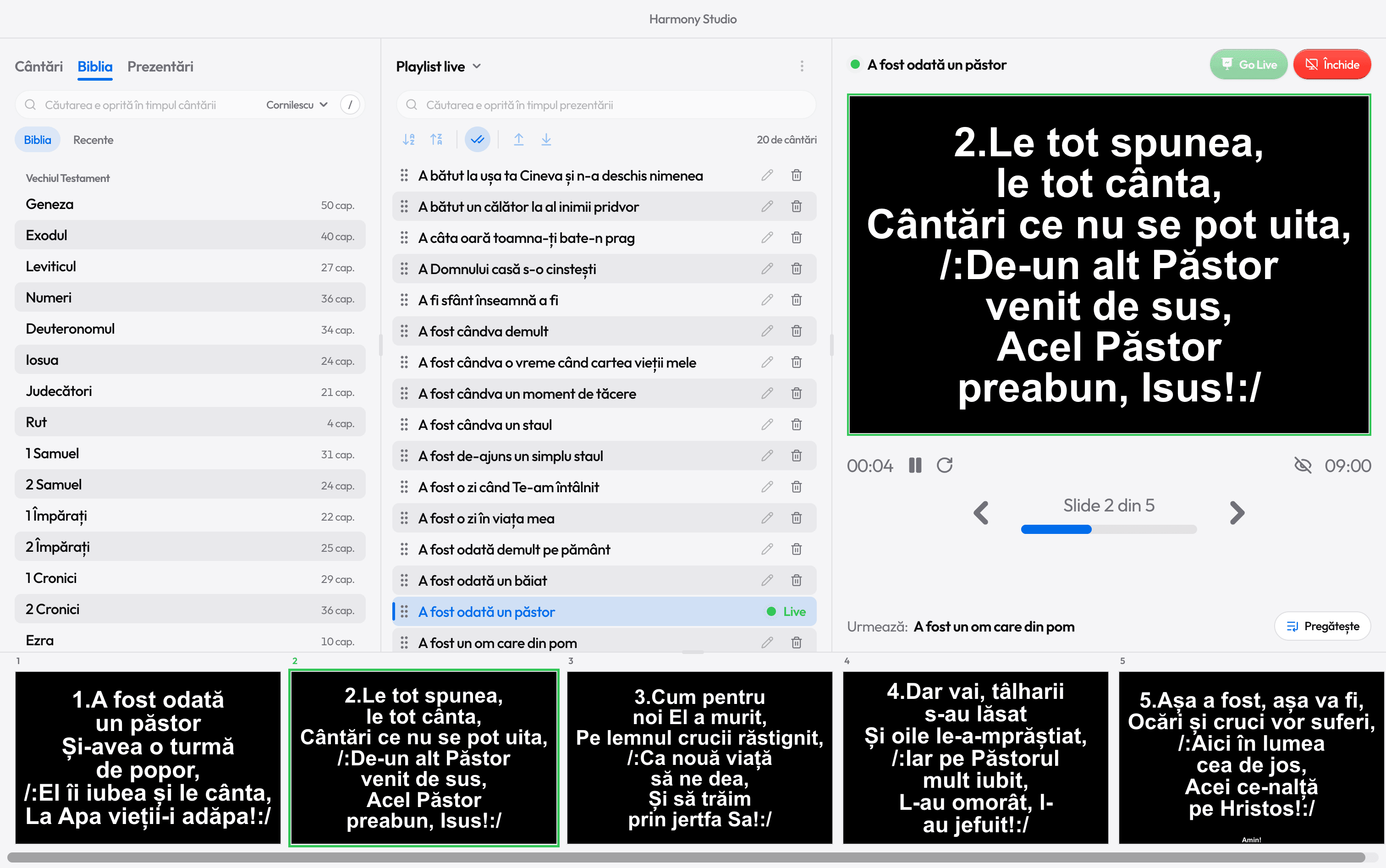
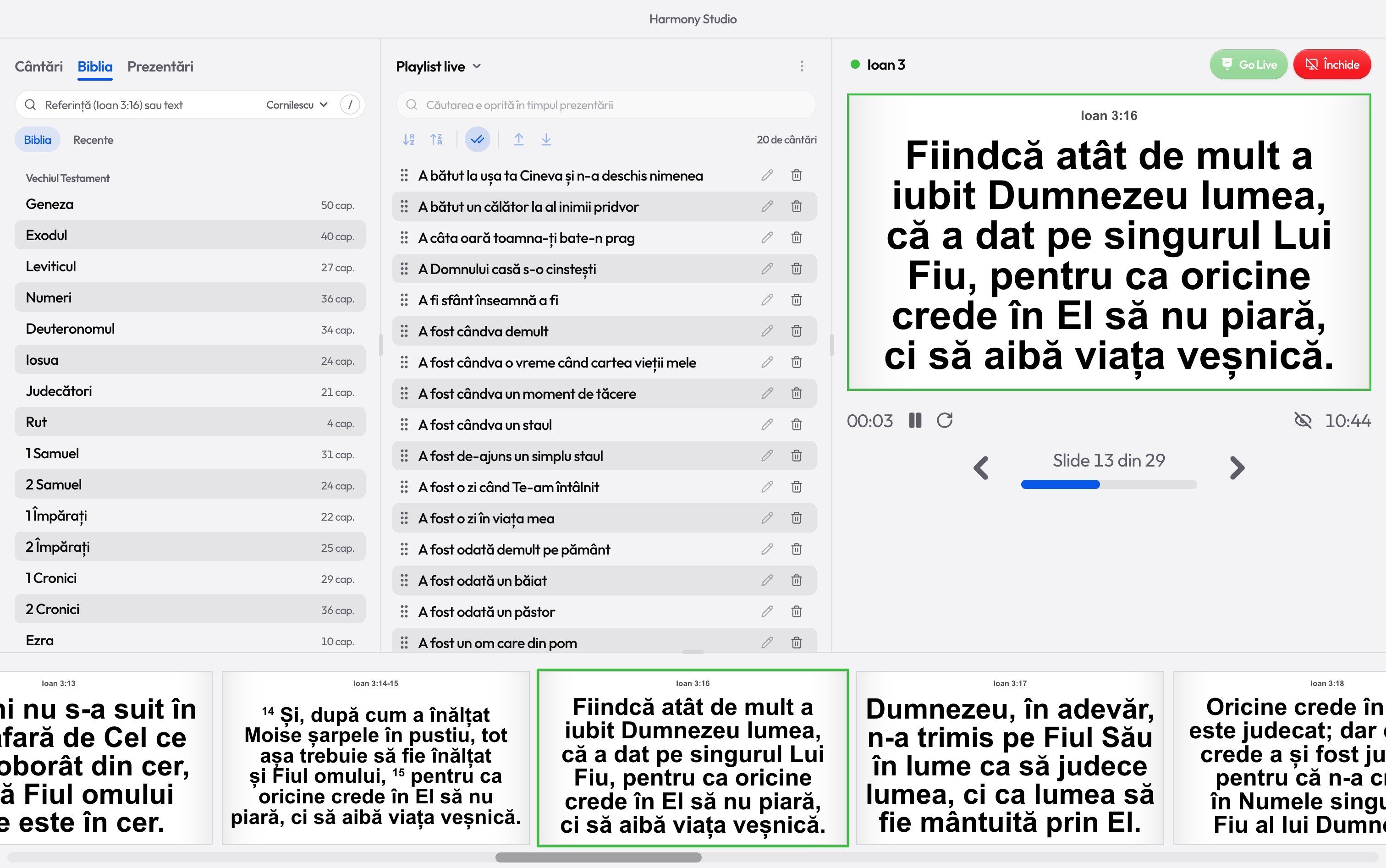
The preacher says “John 3:16”. Before the sentence ends, the verse is on screen: press V, type the reference and Ctrl+Enter.
Step by step
- 1
Press V
From anywhere in the window (or Ctrl+K). A Bible search box opens at the top, and the tab you had open stays as it was.
- 2
Type the reference
However it comes: “john 3 16”, “John 3:16”, “1cor13”, “1 Cor. 13,4”, “ps 23”. With or without punctuation.
- 3
Project it
Ctrl+Enter puts the verse straight on the projector. Enter only puts it in preview, so you can check it first.
- 4
Keep going
The whole chapter is ready: → moves to the next verse, and after the last one it goes on into the next chapter. Numbers jump to a verse: 1 then 6, verse 16.
- 5
Stop
Esc stops the projection. While the V box is empty, it lists today’s verses, so you can go back to one that comes up again.
Four Bibles, no internet
Next to the search you pick the Bible: KJV or BSB in English, Cornilescu in Romanian, or Riveduta in Italian, for guests for example. They’re all inside the app, with no internet needed.
References work with the books’ names in any of these languages: “John 3:16”, “Ioan 3:16” and “Giovanni 3:16” find the same verse.
When you don’t know the reference
- Type a few words from the verse: you search by its text.
- Recent, next to Bible, keeps the last five chapters you opened, so today’s reading is one click away.
- Short verses in a row share a slide, two or three at a time. To show just one, press 1 verse, under the large panel on the right, before Go Live.
Read next

Ready for the service?
Get Harmony Studio from the Microsoft Store. It’s free, needs no account, and keeps itself up to date.

- Free
- No account
- Works offline
- Windows 10 and 11