What’s new
What’s new in Harmony
Every version arrives by itself, through the Microsoft Store. Here’s what each one brought.
Version 1.4.0
A screen for the stage
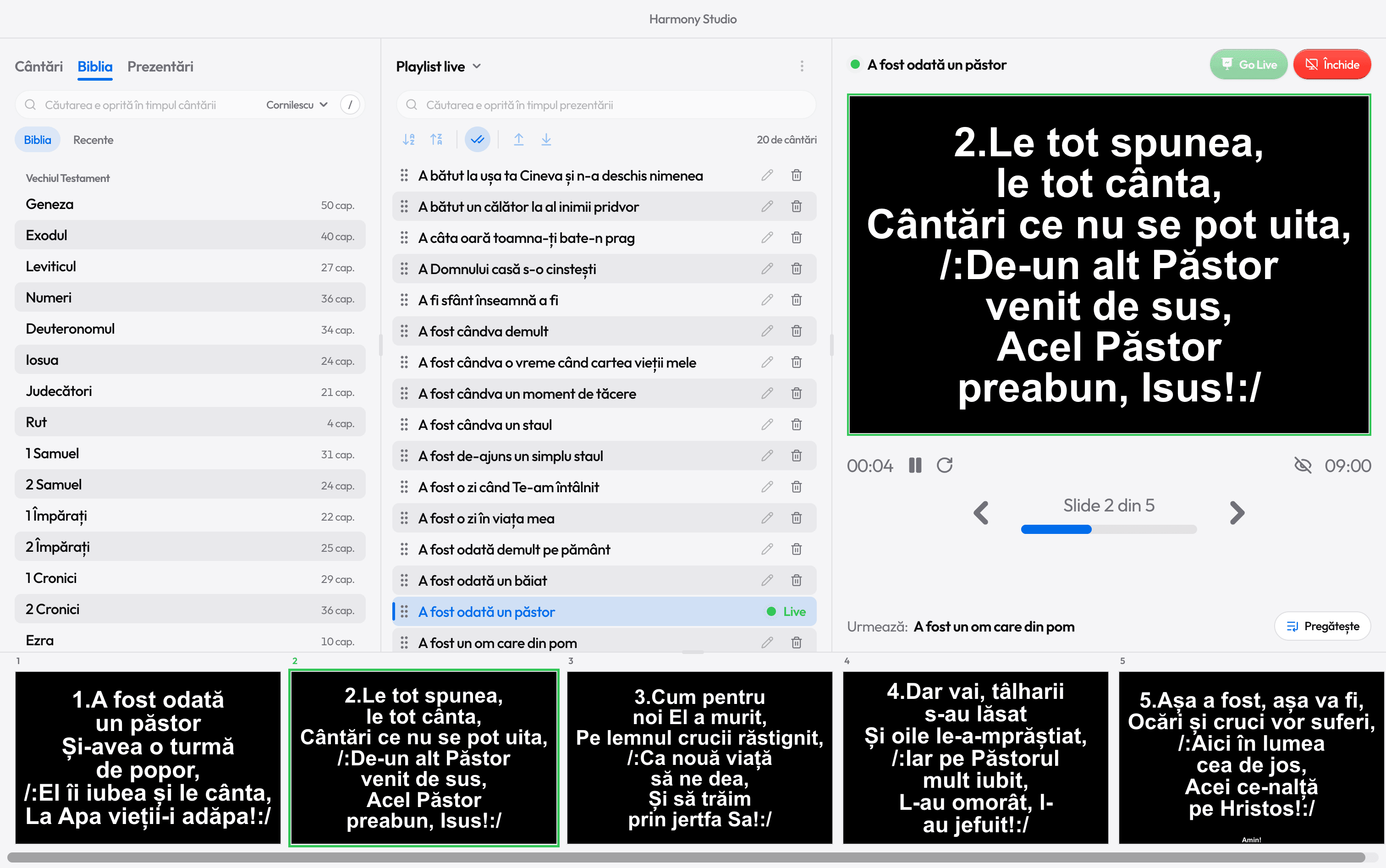
In Settings › Displays, a screen set to Stage shows the singers the current verse and the next one.
Songs kept aside
Drag up to three songs under the playlist; they stay there until you play them live.
The Bible in Italian
Next to the Bible search you can also choose the Riveduta 1927; Giovanni 3:16 works like John 3:16.
The clock, with seconds
In Settings › Standby, choose the seconds and the font of the digits.
New animations
Tabs glide, the playlist comes in row by row, and the live slide moves just like on the projector.
Blue and green
What you pick is blue and what is on the projector is green; the buttons have a new look.
Version 1.3.0
The Bible in English
Next to the Bible search, choose Cornilescu, the KJV or the BSB; Ioan 3:16 works like John 3:16.
Harmony in English
The menus, buttons and guide in English or Romanian, in Settings › Appearance › Language.
A playlist from a list
Paste the list you got on WhatsApp, and Harmony finds each song by itself.
Find a verse from anywhere
V or Ctrl+K searches the Bible, with today’s verses close at hand.
Suggestions
Songs that go with the playlist and the time of year, in the new tab next to Popular.
The next song
N brings the playlist’s next song into preview, even with another one live.
An image under the lyrics
Choose a photo in Settings › Projection; a light shade keeps the text readable.
Black screen
Shift+B turns the projector black, and B hides only the text.
Resume
Stopped by mistake? Resume puts it back on the projector, on the slide it was on.
Playlists in a file
Export a playlist to a .har file and import it on another computer.
A key for every stanza
Above each slide you see the key that takes you to it: 1, 2 or R.
Search in the playlist
It finds the words in any order, and “ma” finds “m-a” too.
One verse per slide
The 1 verse button under the preview splits the short verses apart or puts them together.
Alternating rows
The lists’ rows alternate their background; you can turn it off in Settings › Appearance.
Version 1.2.0
Add from the search
Press Shift+Enter on a result: the song goes to the end of the playlist.
Move songs more easily
Drag a song from anywhere on its row, and the others move smoothly aside.
Rename and clear the playlist
From the playlist’s ⋮ menu. A playlist cleared by mistake comes back with Undo.
Remove with one click
The trash icon next to a song removes it from the playlist, and Undo puts it back.
Recent chapters
In the Bible, the Recent tab keeps the last five chapters opened.
A new song, faster
When a song is missing, Create song opens Studio and searches for its lyrics online.
Faster
The search, long lists and presentations respond instantly to the mouse and the arrows.
Lists in presentations
Bullets take the text’s size, and centered lists now sit where they should.
Zoom out from the keyboard
Ctrl+− makes the window smaller on the Romanian keyboard too, with the key next to 0.
A cleaner look
More compact menus, a more visible blue and new animations at startup and in the playlist.

Ready for the service?
Get Harmony Studio from the Microsoft Store. It’s free, needs no account, and keeps itself up to date.

- Free
- No account
- Works offline
- Windows 10 and 11