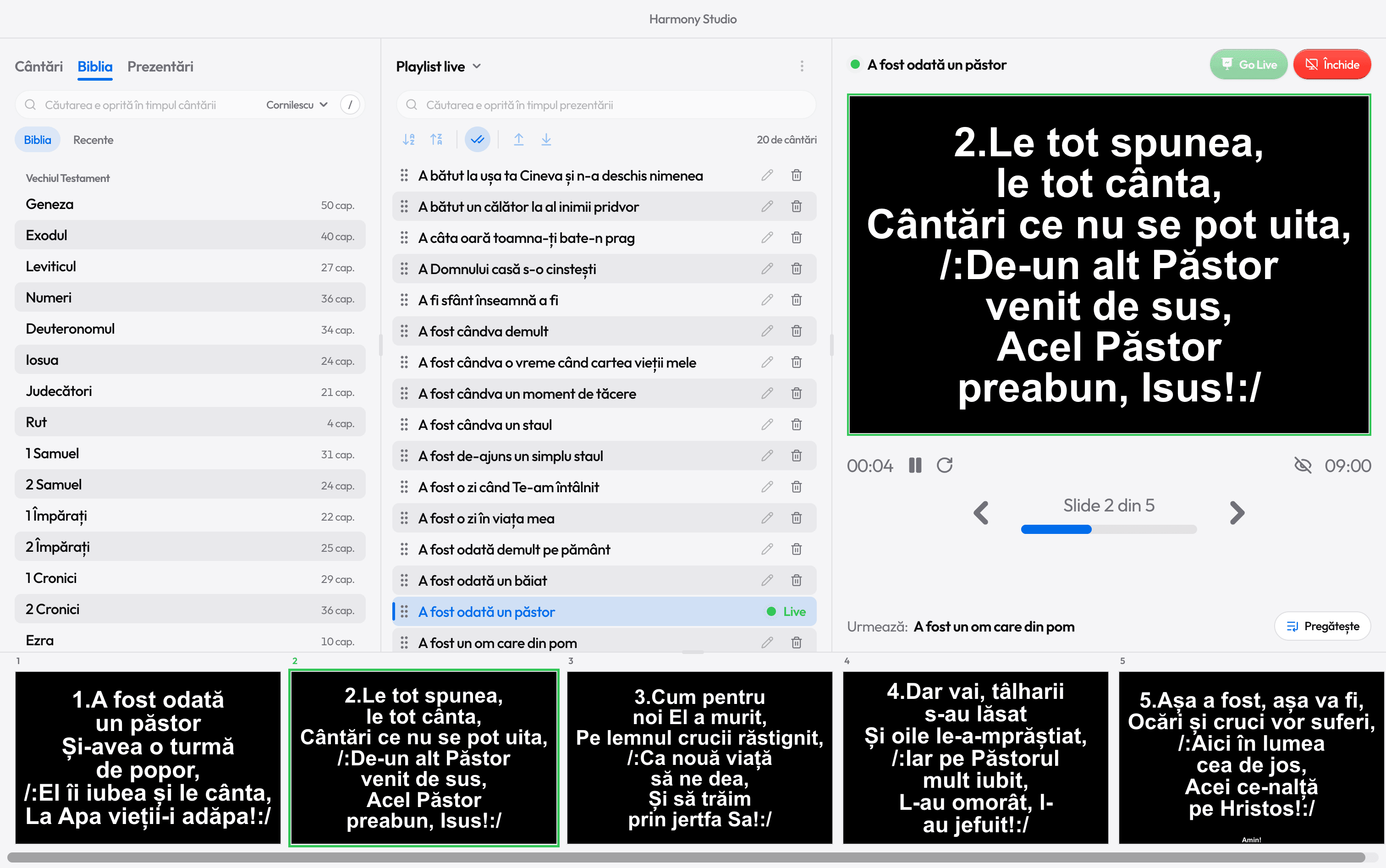
Stage monitor for singers
Singers see the lyrics without turning around
A screen facing the stage shows the current verse and the one that comes next. The congregation doesn’t see it.

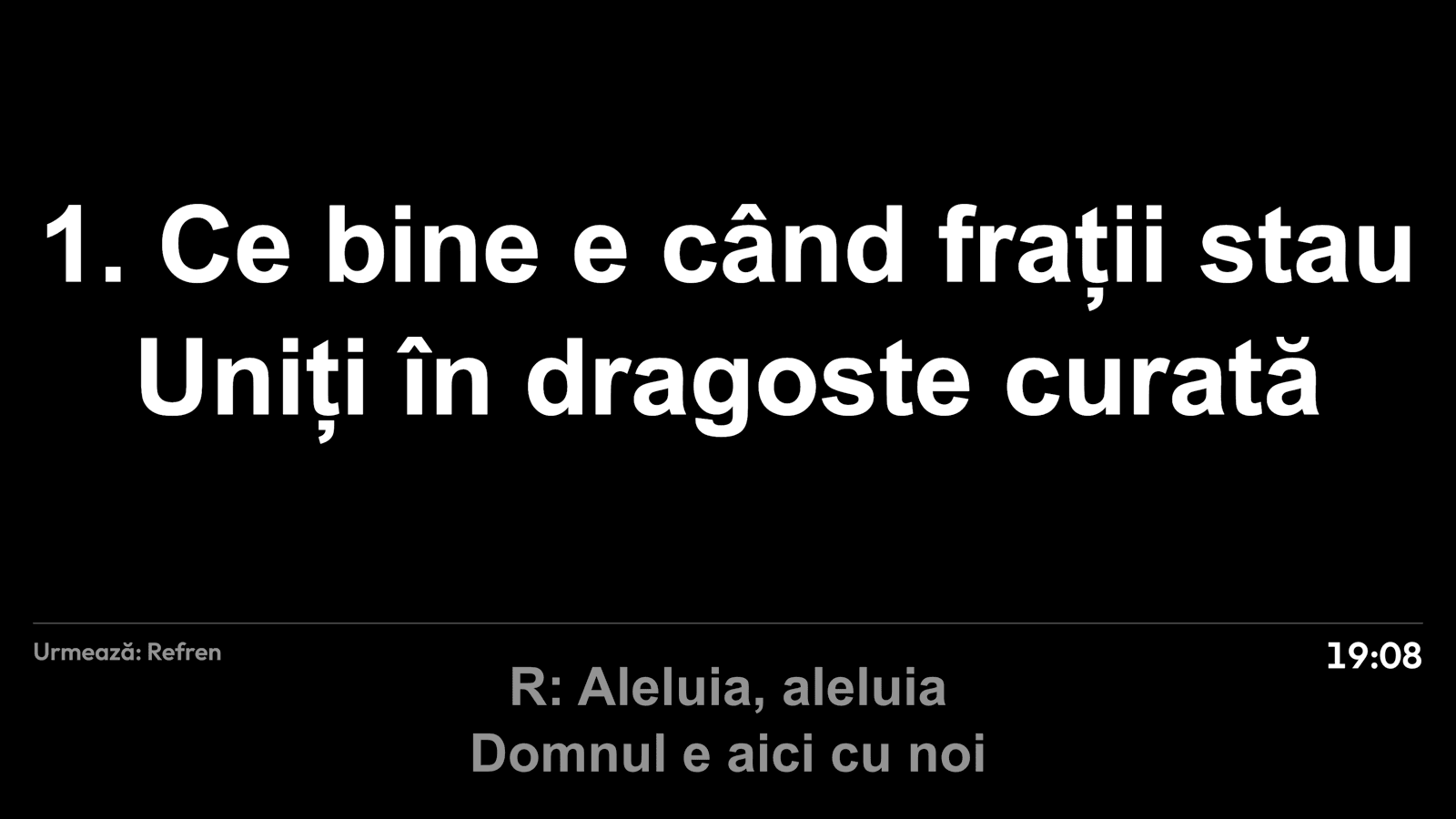
What the singers see
The current verse, large. The next one, underneath
- 1
At the top, as large as it fits, the slide on the projector, white on black, without the room’s background.
- 2
Under a line, smaller, the next slide, its lines broken exactly as they’ll appear above.
- 3
On the left, what comes next: Next: Chorus, Next: Verse 2; on the last slide, End.
- 4
On the right, the time. When nothing is on the projector, the stage shows only the time, large.
With B or Shift+B the text stays on the stage, so the singers can carry on.
Connecting it
How to set up a stage screen
Connect the screen
Like a projector. Besides the projector, the laptop needs one more video output: a dock or an adapter with two HDMI ports.
Extend the displays
On Windows, Win+P › Extend, so each screen shows something different.
Set it to Stage
In Settings › Displays, pick the screen and set it to Stage. It opens and closes by itself, with the projection.
More screens
Projector, TV and stage, all at once
In Settings › Displays you choose which screen holds your window (Control) and which show the lyrics. Several screens can show them at once: a projector in the sanctuary and a TV in the lobby, for example.
Songs always appear on the stage. Bible passages and presentations can be turned off for the stage in the same settings.
Your laptop
Control
Your laptop: the library, the playlist and the preview.
The screens plugged into it
Projector
The lyrics full screen, for the congregation.
TV
One more display screen, in the lobby for example.
Stage
The current verse and the next one, for the singers.

Ready for the service?
Get Harmony Studio from the Microsoft Store. It’s free, needs no account, and keeps itself up to date.
- Free
- No account
- Works offline
- Windows 10 and 11