Guide
How to prepare the service playlist
The songs in the order you’ll sing them, ready before the service starts. It takes a few minutes.
Step by step
- 1
Pick or create a playlist
From the list at the top of the middle area. The menu next to it has Create, Rename and Clear.
- 2
Add the songs
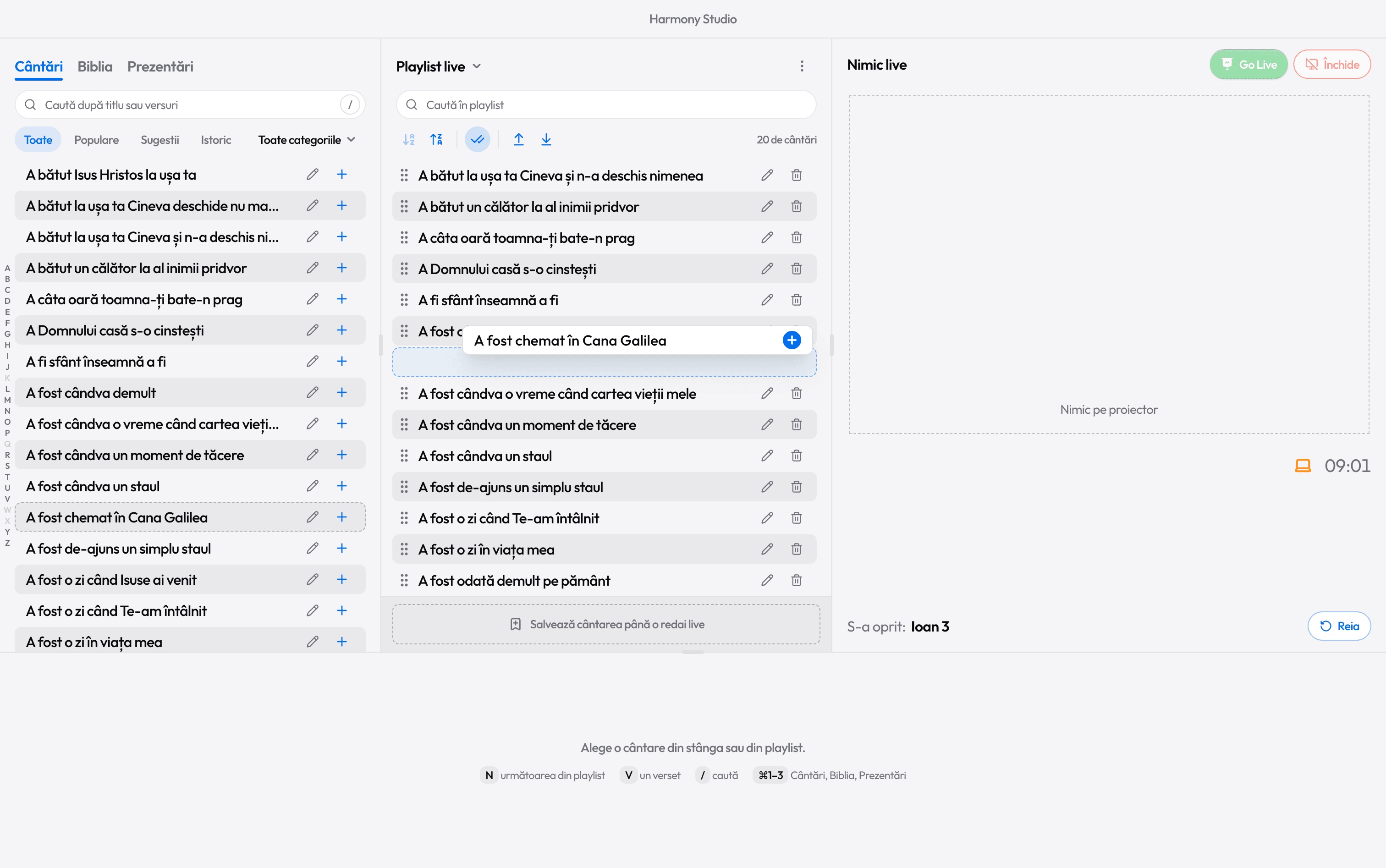
Drag a song from the left into the playlist; the dashed outline shows where it lands. Or press + next to it.
- 3
Faster, without the mouse
Search for the song, pick it with the arrow keys and press Shift+Enter: it goes to the end of the playlist and the search box stays ready for the next one.
- 4
Put them in order
Drag the handle on the left of a row. A song removed by mistake comes back with Undo.
- 5
During the service
N puts the playlist’s next song into preview, ready to Go Live.
Without the mouse
- ShiftEnterThe song picked in the search goes to the end of the playlist.
- NThe playlist’s next song, in preview.
- CtrlEnterGo Live: the song in preview, on the projector.
Tricks that save time
Got the list on WhatsApp? From the playlist’s ⋮ menu, Add from a list….
Repeating a service? In History, the button next to a day puts all its songs in a playlist.
Popular shows the songs your church sings most, and Suggestions the ones that fit the playlist and the time of year.
Two playlists at once (Settings › General): today’s service and a backup list.
A song you’ll sing soon but out of order: drag it under the playlist, to Keep the song here until it goes live (up to three).
Export the playlist to a .har file to take it to another computer, or print it as a PDF.

Ready for the service?
Get Harmony Studio from the Microsoft Store. It’s free, needs no account, and keeps itself up to date.

- Free
- No account
- Works offline
- Windows 10 and 11